
EasyHR Knowledge base EasyHR Knowledge base

  • Home
  • Knowledge Base
  • FAQ
  • Contact
Home / Asset / Asset – Apply

Asset – Apply

1361 views Less than a minute 3
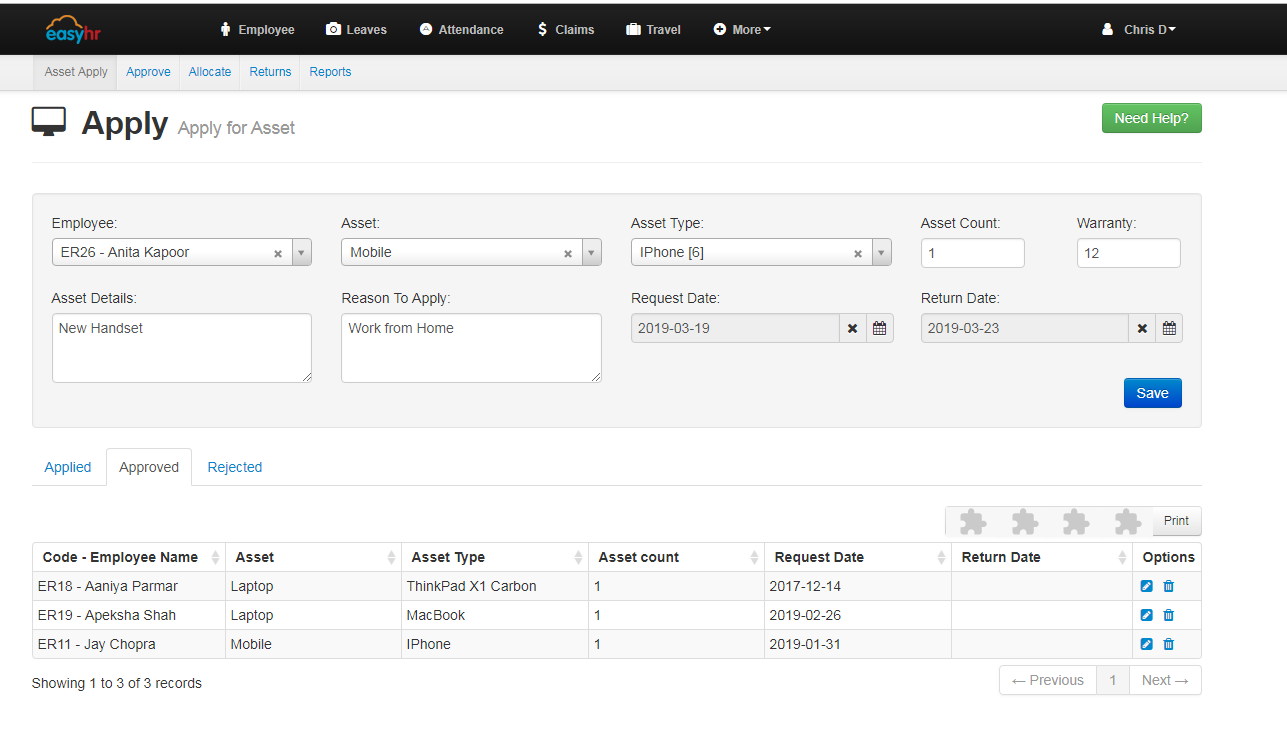
  • Select employee from the list to apply for asset request.
  • Select the asset.
  • Select the type of asset.
  • Enter the number of asset you want.
  • Enter the number of months you want an asset.
  • Enter the asset details.
  • Enter the reason for apply for asset.
  • Select the start date from when you want an asset.
  • Select the end date till when you want an asset.
  • Click on Save button to apply for an asset.
  • You can also view Applied, Approved and Rejected Assets.
 

ApplyAsset Asset

Related Articles

  • Asset – Returns
  • Asset – Allocate
  • Asset – Approve
  • Asset – Introduction

Categories

  • 10Asset
  • 10Attendance
  • 4Dashboard
  • 27Employee
  • 3Helpdesk
  • 2Import
  • 1Incident
  • 4Induction
  • 4Interview
  • 11Leaves
  • 10Loan
  • 2Login
  • 1Miscellaneous
  • 7On Boarding
  • 9Organization
  • 1Outdoor
  • 1Overtime
  • 5Payroll
  • 6Performance
  • 1Quick Links
  • 5Recruitment
  • 1Report Designer
  • 4Resignation
  • 1Rewards
  • 4Separation
  • 5Survey
  • 2Tasks
  • 5Timesheet
  • 10Training
  • 3Work from Home

Most Viewed

  • Login into Easy HR 76495
  • Login – Change Password 7878
  • Employee – Profile 4632
  • Work from Home – Report 3380
  • Exit Interview – Exit Interview Template 2777

Most Liked

  • Login into Easy HR 82
  • Incident 17
  • Leaves – Apply 16
  • Login – Change Password 12
  • Import – Bulk Upload in Easy HR 8

Social

Article Categories

Asset Attendance Dashboard Employee Helpdesk Import Incident Induction Interview Leaves Loan Login Miscellaneous On Boarding Organization Outdoor Overtime Payroll Performance Quick Links Recruitment Report Designer Resignation Rewards Separation Survey Tasks Timesheet Training Work from Home
Flatbase by NiceThemes © 2025. — Powered by WordPress.