
EasyHR Knowledge base EasyHR Knowledge base

  • Home
  • Knowledge Base
  • FAQ
  • Contact
Home / Leaves

1599 views Less than a minute 3
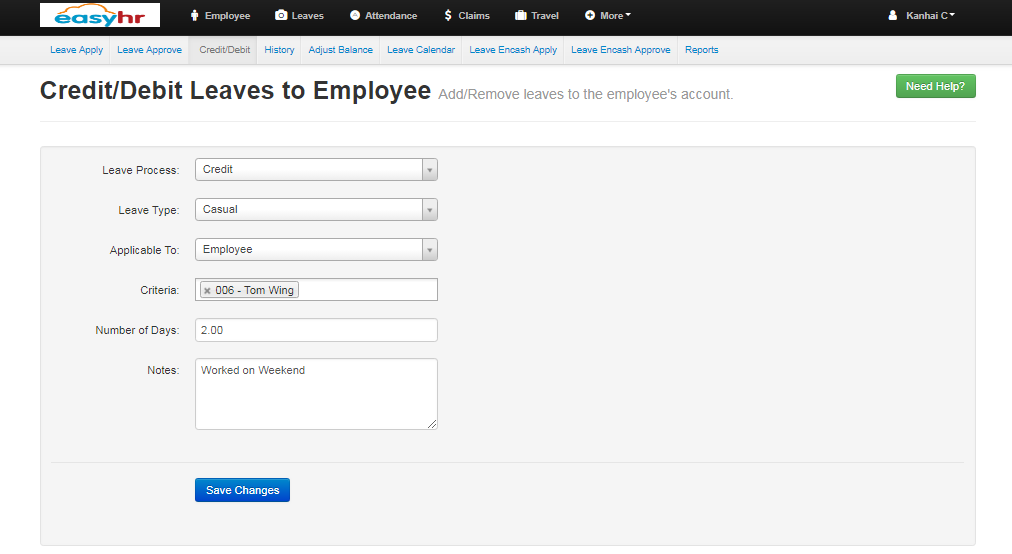
  • Select leave process (Credit/Debit)
  • Select leave type to be credited/debited.
  • Select the applicable to from the drop down.
  • Select employee from the list to whom leave needs to be credited/debited.
  • Enter number of day(s) to be credited/debited.
  • Enter notes.
  • Click the save button to credit/debit the leave for the employee.
Credit / DebitLeaves Leaves

Related Articles

  • How to Approve Leave
  • How To Apply For Leave
  • Leaves – Reports
  • Leaves – Encash Approve

Categories

  • 10Asset
  • 10Attendance
  • 4Dashboard
  • 27Employee
  • 3Helpdesk
  • 2Import
  • 1Incident
  • 4Induction
  • 4Interview
  • 11Leaves
  • 10Loan
  • 2Login
  • 1Miscellaneous
  • 7On Boarding
  • 9Organization
  • 1Outdoor
  • 1Overtime
  • 5Payroll
  • 6Performance
  • 1Quick Links
  • 5Recruitment
  • 1Report Designer
  • 4Resignation
  • 1Rewards
  • 4Separation
  • 5Survey
  • 2Tasks
  • 5Timesheet
  • 10Training
  • 3Work from Home

Most Viewed

  • Login into Easy HR 76535
  • Login – Change Password 7894
  • Employee – Profile 4645
  • Work from Home – Report 3389
  • Exit Interview – Exit Interview Template 2784

Most Liked

  • Login into Easy HR 82
  • Incident 17
  • Leaves – Apply 16
  • Login – Change Password 12
  • Import – Bulk Upload in Easy HR 8

Social

Article Categories

Asset Attendance Dashboard Employee Helpdesk Import Incident Induction Interview Leaves Loan Login Miscellaneous On Boarding Organization Outdoor Overtime Payroll Performance Quick Links Recruitment Report Designer Resignation Rewards Separation Survey Tasks Timesheet Training Work from Home
Flatbase by NiceThemes © 2025. — Powered by WordPress.