EasyHR Knowledge base EasyHR Knowledge base

  • Home
  • Knowledge Base
  • FAQ
  • Contact
Home / Separation / Separation – History

Separation – History

2502 views Less than a minute 3
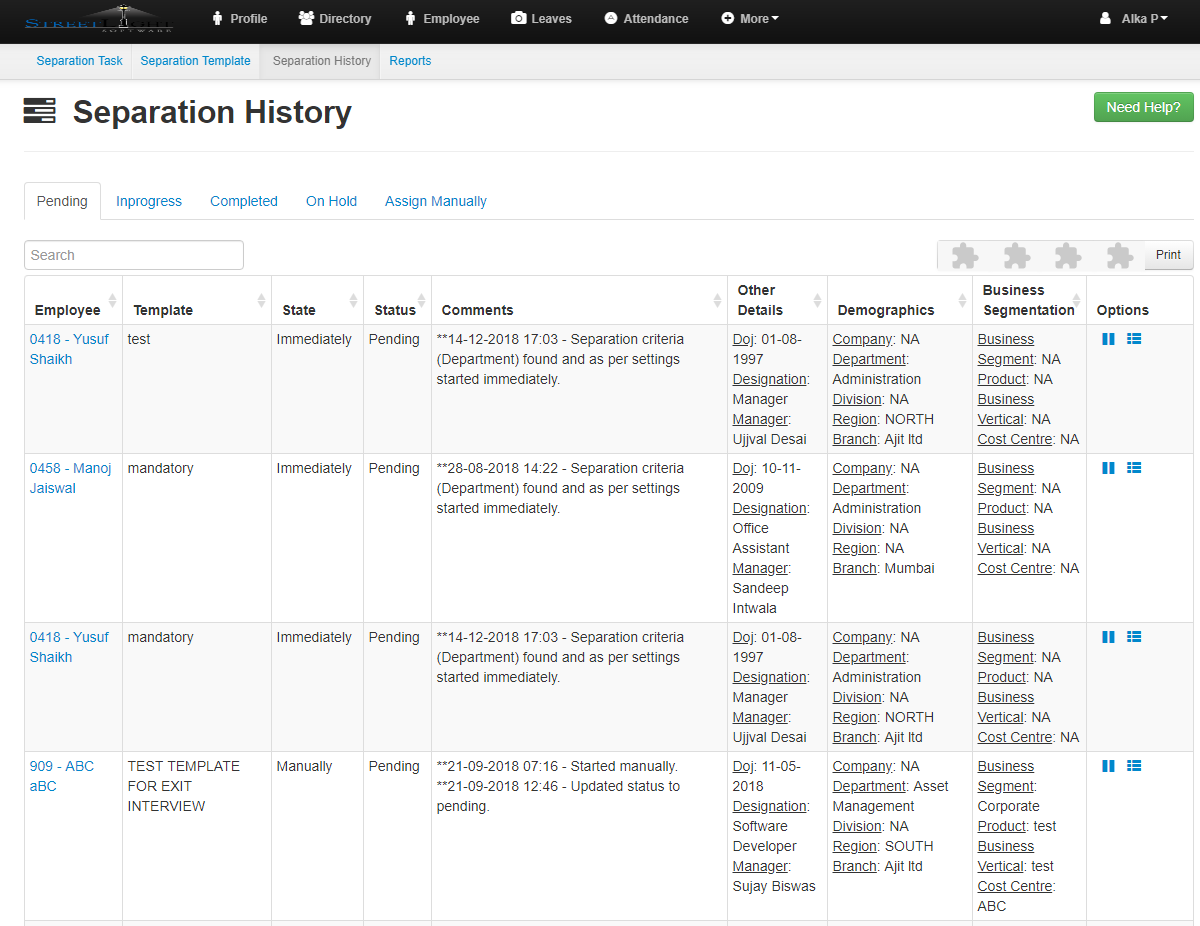
  • Click on Separation History.

  • In this you can see the pending,In progress,Completed and On Hold details separately
  • Click on Assign Manually
  • Here you can Assign a Manually template to the employee.
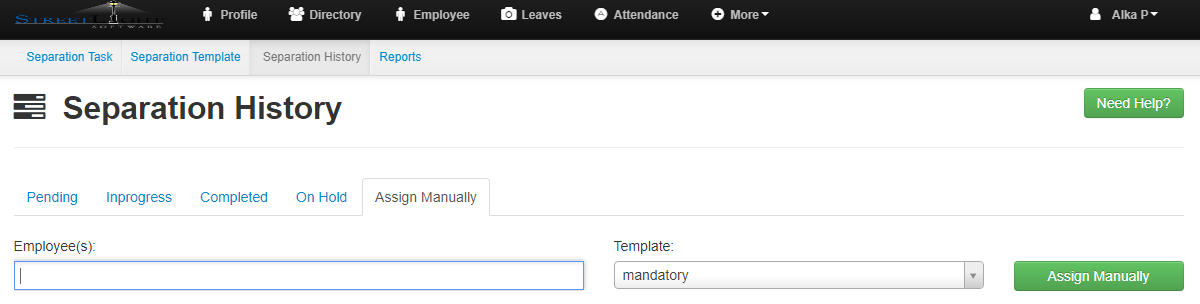
  • Select the employee and template and click on the Assign Manually button.
HistorySeparation Separation

Related Articles

  • Separation – Task
  • Separation – Template
  • Separation – Reports

Categories

  • 10Asset
  • 10Attendance
  • 4Dashboard
  • 27Employee
  • 3Helpdesk
  • 2Import
  • 1Incident
  • 4Induction
  • 4Interview
  • 11Leaves
  • 10Loan
  • 2Login
  • 1Miscellaneous
  • 7On Boarding
  • 9Organization
  • 1Outdoor
  • 1Overtime
  • 5Payroll
  • 6Performance
  • 1Quick Links
  • 5Recruitment
  • 1Report Designer
  • 4Resignation
  • 1Rewards
  • 4Separation
  • 5Survey
  • 2Tasks
  • 5Timesheet
  • 10Training
  • 3Work from Home

Most Viewed

  • Login into Easy HR 82141
  • Login – Change Password 8969
  • Employee – Profile 5285
  • Work from Home – Report 3855
  • Exit Interview – Exit Interview Template 3452

Most Liked

  • Login into Easy HR 89
  • Incident 17
  • Leaves – Apply 16
  • Login – Change Password 13
  • Import – Bulk Upload in Easy HR 8

Social

Article Categories

Asset Attendance Dashboard Employee Helpdesk Import Incident Induction Interview Leaves Loan Login Miscellaneous On Boarding Organization Outdoor Overtime Payroll Performance Quick Links Recruitment Report Designer Resignation Rewards Separation Survey Tasks Timesheet Training Work from Home
Flatbase by NiceThemes © 2026. — Powered by WordPress.